Get your price in under 2 minutes We respond 24/7 · 365 days a year — request a price or order a machine any time Authorized Kyocera Dealer · Nationwide coverage
Authorized Kyocera Dealer · Nationwide coverage

How-To & Support — watch it, then do it.

Simple Kyocera TASKalfa and ECOSYS steps for the two jobs offices do most — plus one clear way to place a service call.

Your model's screen will prompt you at the right moments. If a cover will not close, a cartridge will not seat, or a message stays on screen, stop and call ASR at 516-268-0333 rather than forcing a part.

Support

Do it yourself, or send ASR a service call

These are the standard, safe steps for Kyocera TASKalfa and ECOSYS machines. Screens and cover layouts vary slightly by model.

Watch & learn

See it done — animated step-throughs

Each demo plays on its own, step by step. Follow along on your machine, then use the written steps below if you want them in front of you.

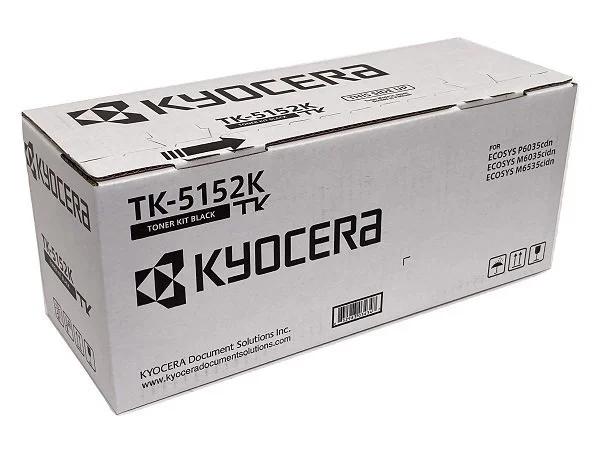
Install a toner cartridge

Front cover opens → old cartridge out → new cartridge in → cover closes.

OLD · TK BLACK NEW · TK BLACK FRONT COVER

Replace the waste toner box

Front cover opens → full box out → fresh box in → cover closes.

WASTE BOXFULL WASTE BOXNEW · EMPTY FRONT COVER

How to install toner

Use the genuine cartridge made for your model and color.

  1. Open the front cover when your model's screen prompts you.
  2. Release and remove the empty cartridge for the color shown on screen.
  3. Hold the new cartridge level and shake it side to side as directed on its packaging.
  4. Insert the new cartridge fully until it clicks or seats firmly.
  5. Close the front cover and let the machine finish its on-screen setup prompt.
How to replace the waste toner box

Replace it when the machine says the waste toner box is full.

  1. Open the front cover when your model's screen prompts you.
  2. Release the waste toner box and pull it straight out, keeping it upright so toner does not spill.
  3. Seal the old box using its cap or cover if one is fitted, and set it aside for proper disposal or return.
  4. Fit the new waste toner box in the same position until it is seated or locked.
  5. Close the cover and follow the screen prompt. If the full message remains, place a service call below.

How to check your meter counts

Your black & white and color totals live on the machine's Counter screen — those are the numbers billing is based on.

  1. Look for the Counter key on the control panel — on many TASKalfa models it is a physical key beside the screen; on others it is an on-screen button.
  2. No Counter key? Tap System Menu, then open Counter (on some models it sits under Device Information / Status).
  3. Read the totals: total pages, black & white (mono) pages and color pages. Many models also split copy, print and scan counts.
  4. Note the black & white and color numbers with today's date — or log them in the meter tracker below.

Menus vary slightly by model.

How to print a status page

A status page prints your model, serial number and current meter counts on one sheet — handy to keep with your records.

  1. Tap System Menu on the touchscreen.
  2. Open Report, then Print Report.
  3. Choose Status Page and confirm Print / Yes.
  4. The status page comes out with the machine's model, serial number and meter counts — file it, or send a copy to ASR.

Menus vary slightly by model.

Place a service call

Tell ASR the machine model and what is happening — a photo of the screen message can help after we reply.

ASR customers on a plan: service is covered.
Not an ASR customer? Flat $250 per visit plus parts.

Prefer to call? 516-268-0333

Fixed it? Glad it helped — a quick Google review helps other offices find ASR.

Meter counts

Track your meter counts

ASR customers: log your counts here so ASR sees them before billing — no surprises on the invoice. Not sure where to find the numbers? Use the two how-tos above: check the Counter screen, or print a status page.

Every reading you log here is sent to ASR.

No readings yet — add your first one above and it will appear here.

Service request

Send the problem to ASR

Include the model name from the front of the machine and the exact screen message if there is one. We respond 24/7, 365 days a year; on-site service targets apply during business hours in the direct ASR service area.

Place a service call

Goes straight to ASR Office Solutions.

Your request is sent to ASR at [email protected]. We respond 24/7 · 365 days a year.

Service call sent to ASR ✓

Your service request is on its way. We respond 24/7, 365 days a year. If you are not on an ASR plan, the visit is a flat $250 plus parts.

How'd we do?

If we earned it, a Google review helps other local businesses find a dealer they can trust — and tell us how the website worked for you: was it easy to find what you needed and get it done? It takes about 30 seconds.

Leave a Google review

Completely optional — thanks either way.

Your feedback

Did this answer your question?

If one of the how-tos above solved it — or the website simply made it easy to find what you needed — we'd love to hear about it. Reviews help other local businesses find a dealer they can trust, and they tell us the site is doing its job.

How'd we do?

Tell us how the website worked for you — was it easy to find your answer and get it done? A Google review takes about 30 seconds.

Leave a Google review

Completely optional — thanks either way.

Get your price in under 2 minutes — press the button, it opens right here. No phone call needed.